For everyone
These features work the same for every attendee — delegates, speakers, industry and guests.
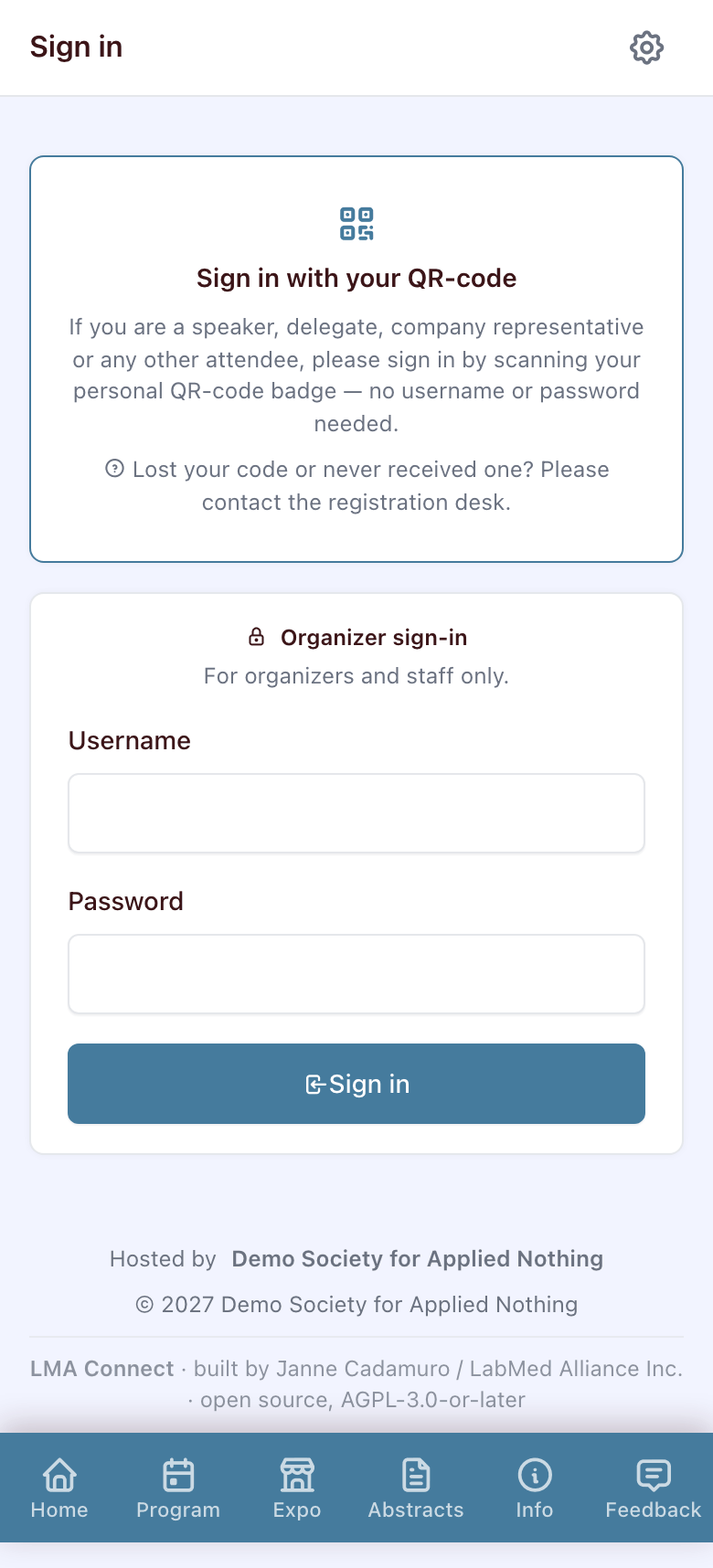
Sign in — two ways
Home & programme
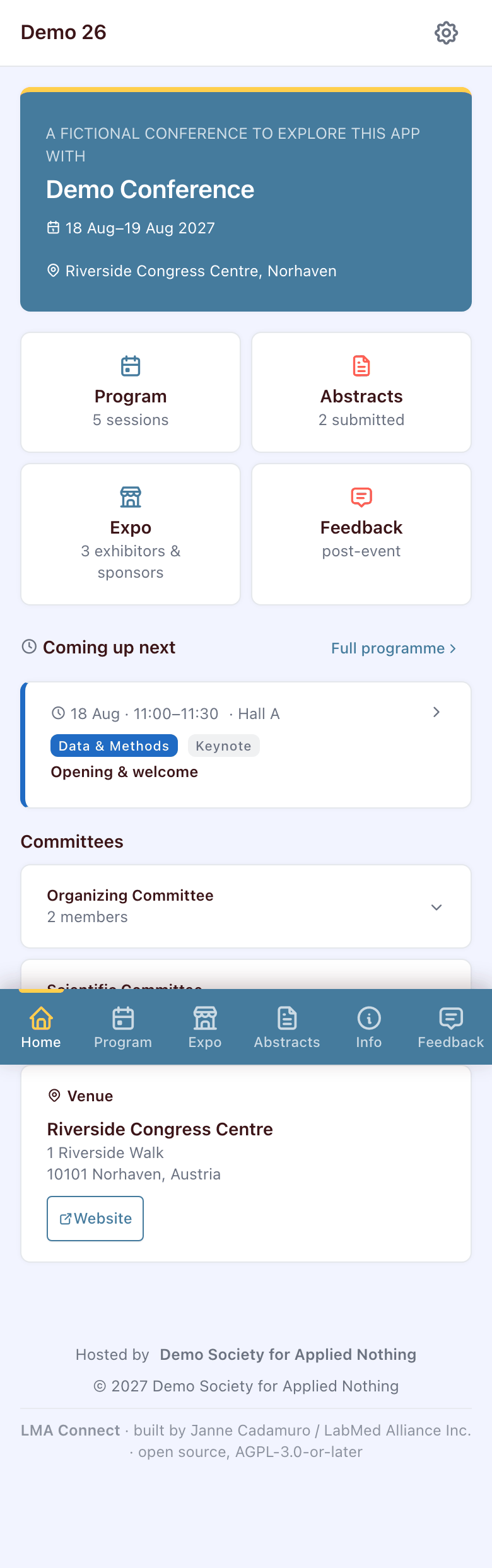
The Home screen gives you the event at a glance — what's coming up next, quick tiles to the programme, abstracts, expo and feedback, plus the committees.
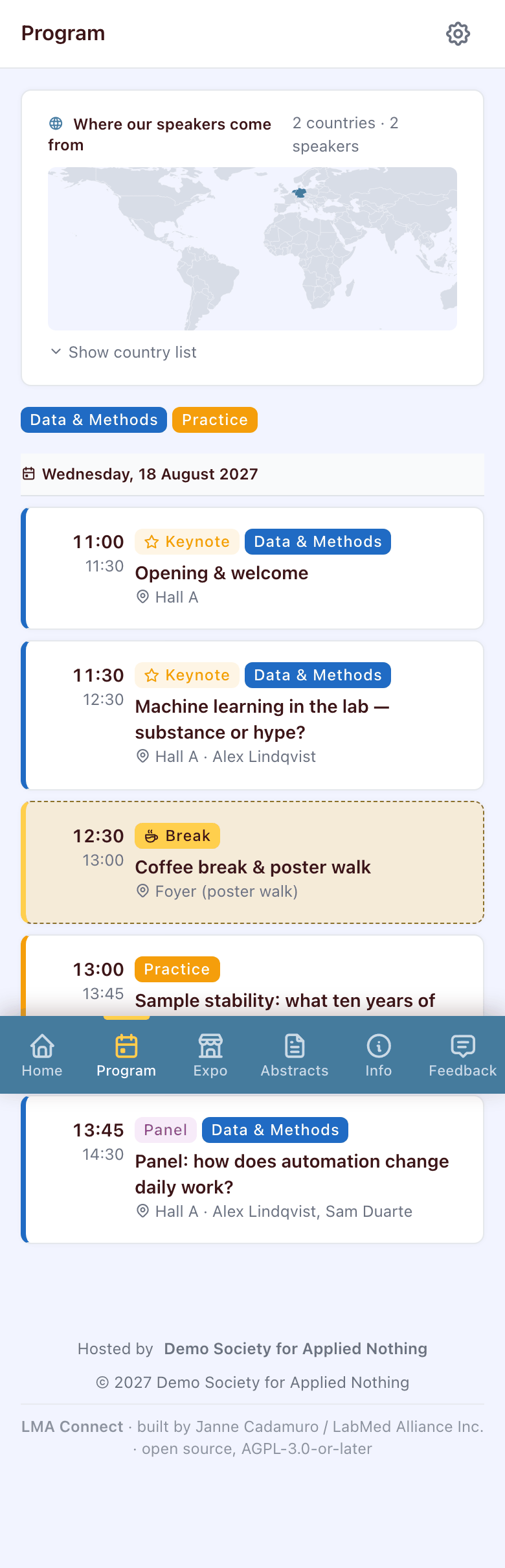
Tap Programme in the bottom bar to see all sessions grouped by day. Each session shows its type, track and time.
Tap a session to see the speakers, abstract and live tools (Q&A, poll, rating). Speaker names link to their profile with bio and contact links.
On a session page
Everything that happens live during a talk is on its session page.
Ask & up-vote questions
- Type your question and hit Send.
- Tap the thumbs-up on someone else's question to up-vote it. Most-voted questions float to the top so the chair sees what the room wants to know.
- Questions starred by the session chair appear at the very top with a gold border — those are the ones the chair plans to ask.
- Be civil: posts that breach the terms of use can be hidden by the chair or organiser.
Live polls
When the chair opens a poll, the question shows up on the session page. Tap your choice — for multi-choice polls you can pick several options. Results appear on the room screen.
Rate a session
Each session can be rated on four independent dimensions:
- Slides — visual quality of the presentation
- Clarity (English) — how easy it was to follow the English
- Practical relevance — usefulness for your daily work
- Overall — your gut feeling
Tap a star for each dimension — your rating saves immediately. You can also leave a free-text comment; remember to hit Save comment when you're done typing.

Sponsors & exhibitors
The Expo tab lists all exhibitors in alphabetical order. Each sponsor page shows their description, contact people, materials to download (PDFs, white-papers) and a pin on the floor plan so you can find their booth.
Abstracts & posters
Browse all submitted abstracts in the Abstracts tab. Use the search box to filter by title or author, and the pills to narrow down by category. Each abstract page tells you where to find the poster (poster ID + location) and lists all authors with their affiliations and ORCID.
Audience Choice Award: every attendee has three stars for their favourite posters. You give a star by scanning the QR code on the poster itself — voting works on site only, one star per poster. You are asked to confirm, because a star cannot be changed or taken back afterwards. Giving a star also earns you points. Your remaining stars are shown on your profile page.
Surveys
Organisers may publish surveys during or after the event. Open the Feedback tab, pick a survey, and answer the questions — yes/no, scale 1–5, single or multiple choice, or free text. You can come back and edit your answers as long as the survey is open.
Your profile, points & badges
Every action you take in the app earns you points: asking a question, up-voting, voting in a poll, rating a session, completing a survey.
Open My profile (the person icon, top right) to change your nickname and see your score and unlocked badges, or check the leaderboard to see who's most active.

Add to home screen
Use the app like a native app — without a browser address bar:
- iPhone / iPad: in Safari, tap the share button → Add to Home Screen.
- Android: in Chrome, tap the menu → Install app (older versions: Add to Home Screen → Install).
Your data & privacy
We store only what we need to run the event: your nickname, optional affiliation, and the actions you take in the app (questions, votes, ratings). No tracking, no ads, no third-party analytics. For the details see the privacy policy and the imprint.
For session chairs Chair / Co-Chair
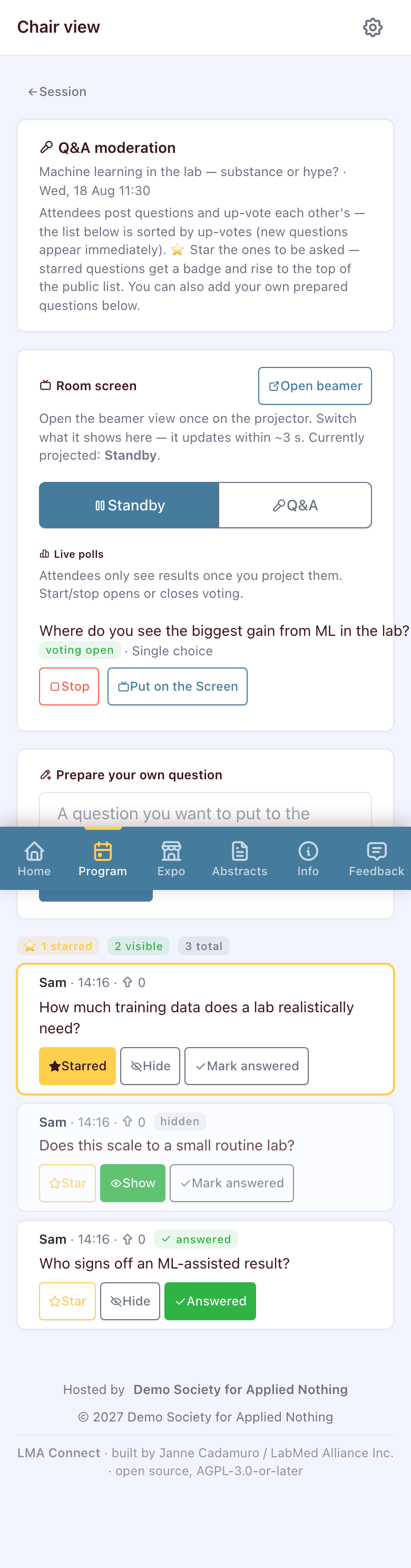
If you chair or co-chair a session, that session gets an extra Chair view for moderating Q&A, running polls and driving the room screen. You reach it from the session page via the “Chair view” button.
Moderate the Q&A
- Star a question to promote it — starred questions get a badge and jump to the top of the public list, so the audience sees what you'll actually ask.
- Hide a question that is off-topic or breaches the rules; Mark as answered once the panel has dealt with it.
- Prepare your own questions in advance with Add question — they're added pre-starred so you can walk in ready.
- The counters show how many questions are starred, visible and total.
The room screen (beamer) & live polls
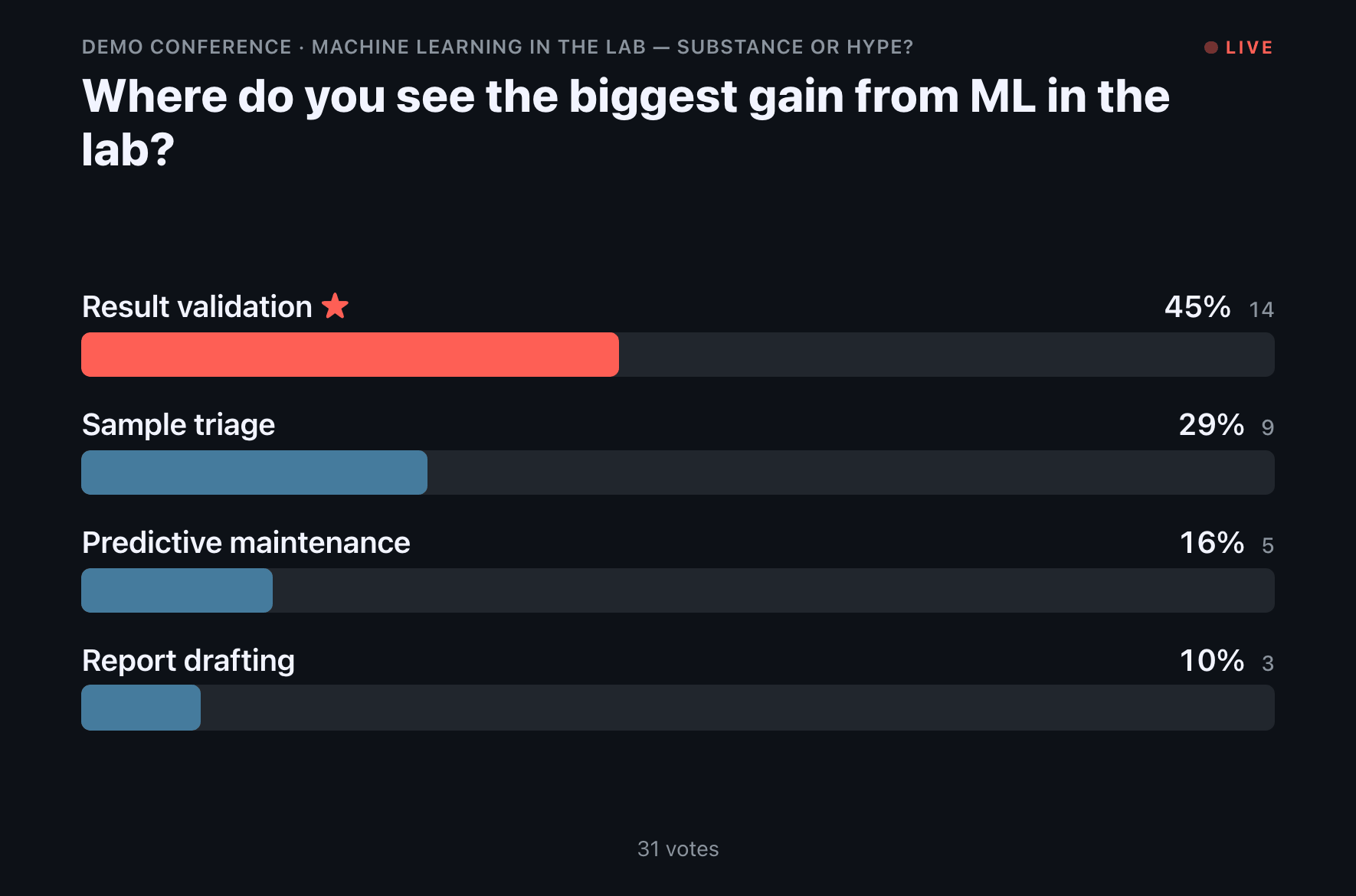
Open the room screen once on the projector. From the chair view you switch what it shows — a Standby title card, the live Q&A, or a poll's results — and it refreshes within a few seconds. You never need to touch the projector laptop again.
Live polls: attendees only see the results once you project them. Start/stop opens or closes the vote. Below you can see the two screen states — a live poll result and the standby card.

For industry & exhibitors Company / Industry
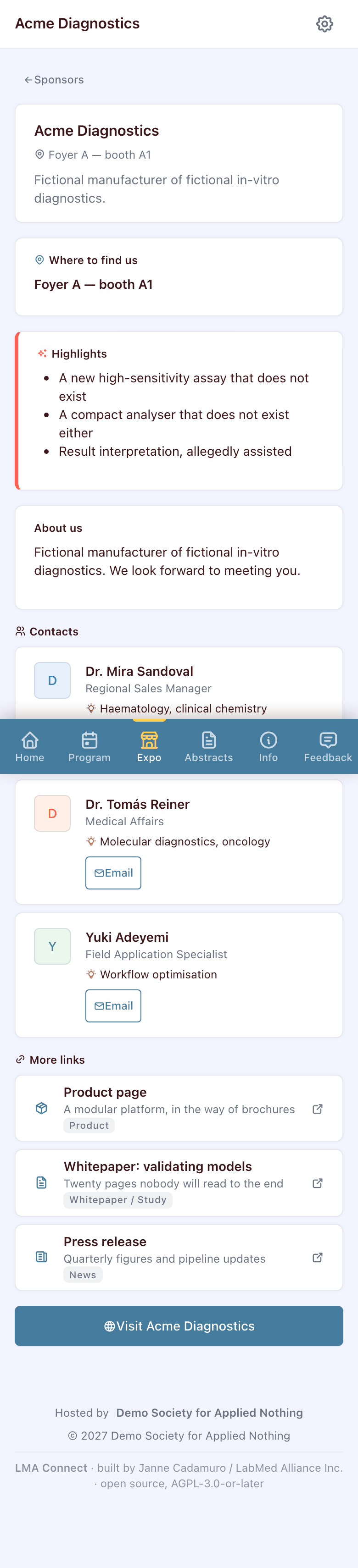
If you represent a company at the expo: you use the app like every other attendee — sign in by scanning the QR code on your badge. On top of that, your company has a profile and a booth in the app.
Your company profile
Attendees find you in the Expo tab — all exhibitors are listed as equals, in alphabetical order. Your profile page shows:
- your logo, a short one-line description and the full company description,
- your contact people at the booth — with photo, role and field of expertise, so visitors know whom to approach,
- downloads (white-papers, datasheets, brochures) and links attendees can open right away,
- your booth location, plus a pin on the floor plan.
The profile is maintained by the organisers — you don't have to edit anything yourself.
Your booth QR code & the booth quiz
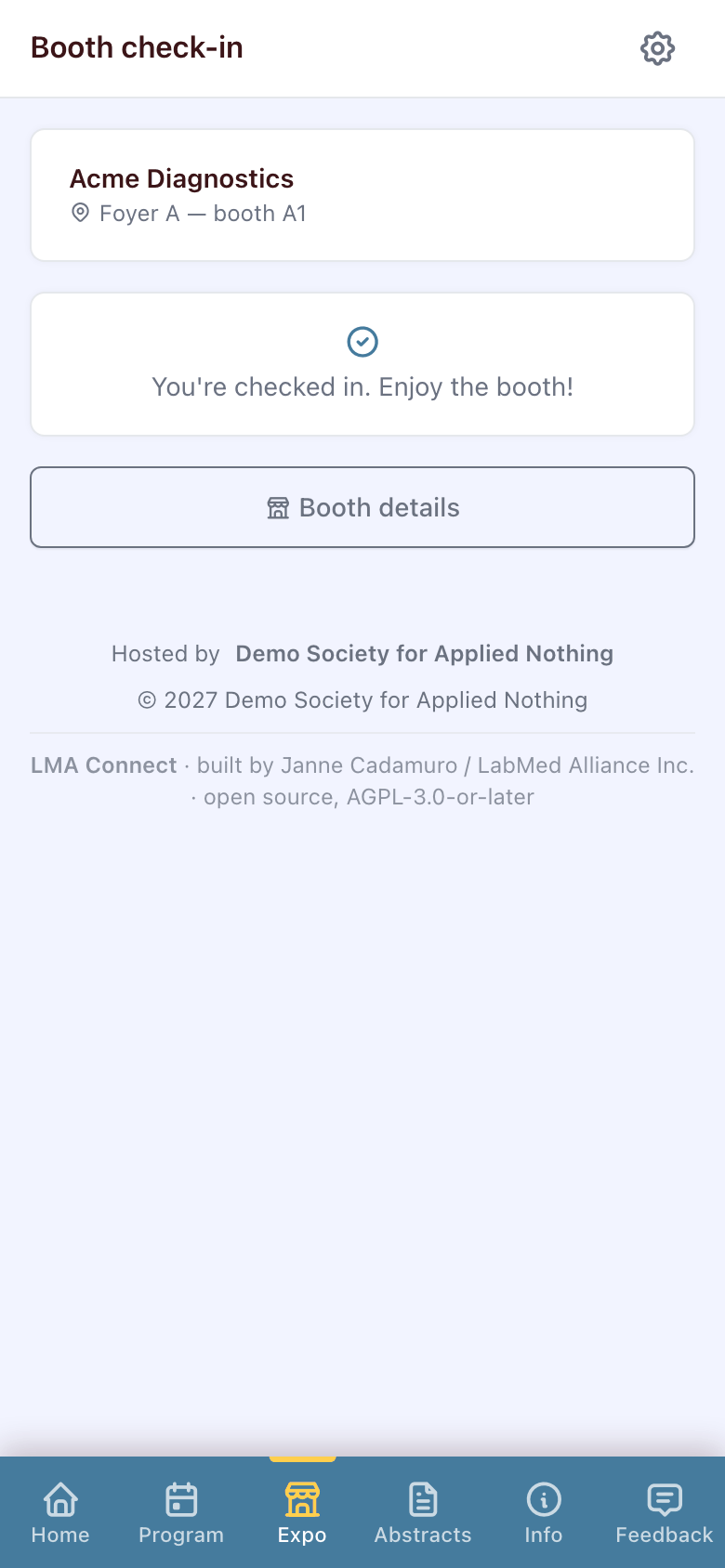
You get a printed QR code for your booth from the organisers. Visitors scan it and check in — that earns them points in the app's leaderboard, which is exactly what draws them to your stand.
On top of the check-in you can have a booth quiz: one question with several answers. The answer should be findable at your booth — on a roll-up, on a device, or simply by asking your staff. That is the point: it starts a conversation. A correct answer earns extra points.
Send your quiz question and answers to the organisers — we set it up for you.
Want to change something on your profile?
Send your text, logo, contact people, downloads or quiz question to the organisers — we keep your profile up to date for you, before and during the event.

For organisers Operations team
Organisers and staff have an Operations area for access tokens, badges and attendees. Reach it from the wrench icon in the top bar after signing in with your organiser account.
Operations dashboard
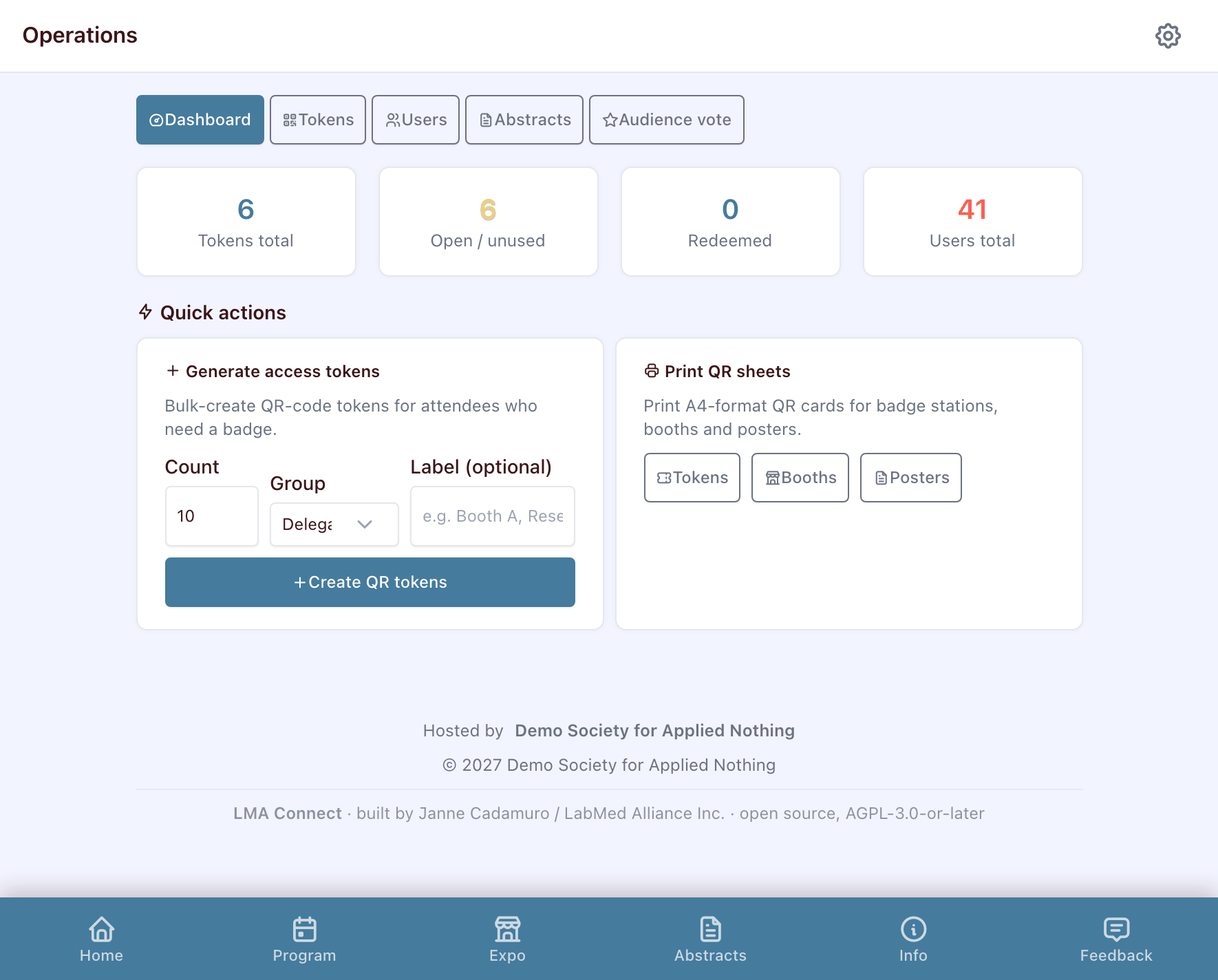
The dashboard shows live counts — tokens total, open/unused, redeemed and registered users — and quick actions for the two most common jobs:
- Generate access tokens in bulk — pick a count and a group (Delegate, Speaker, Industry …).
- Print QR sheets — A4 sheets of QR cards for badge stations, booths and posters.
Access tokens & badges
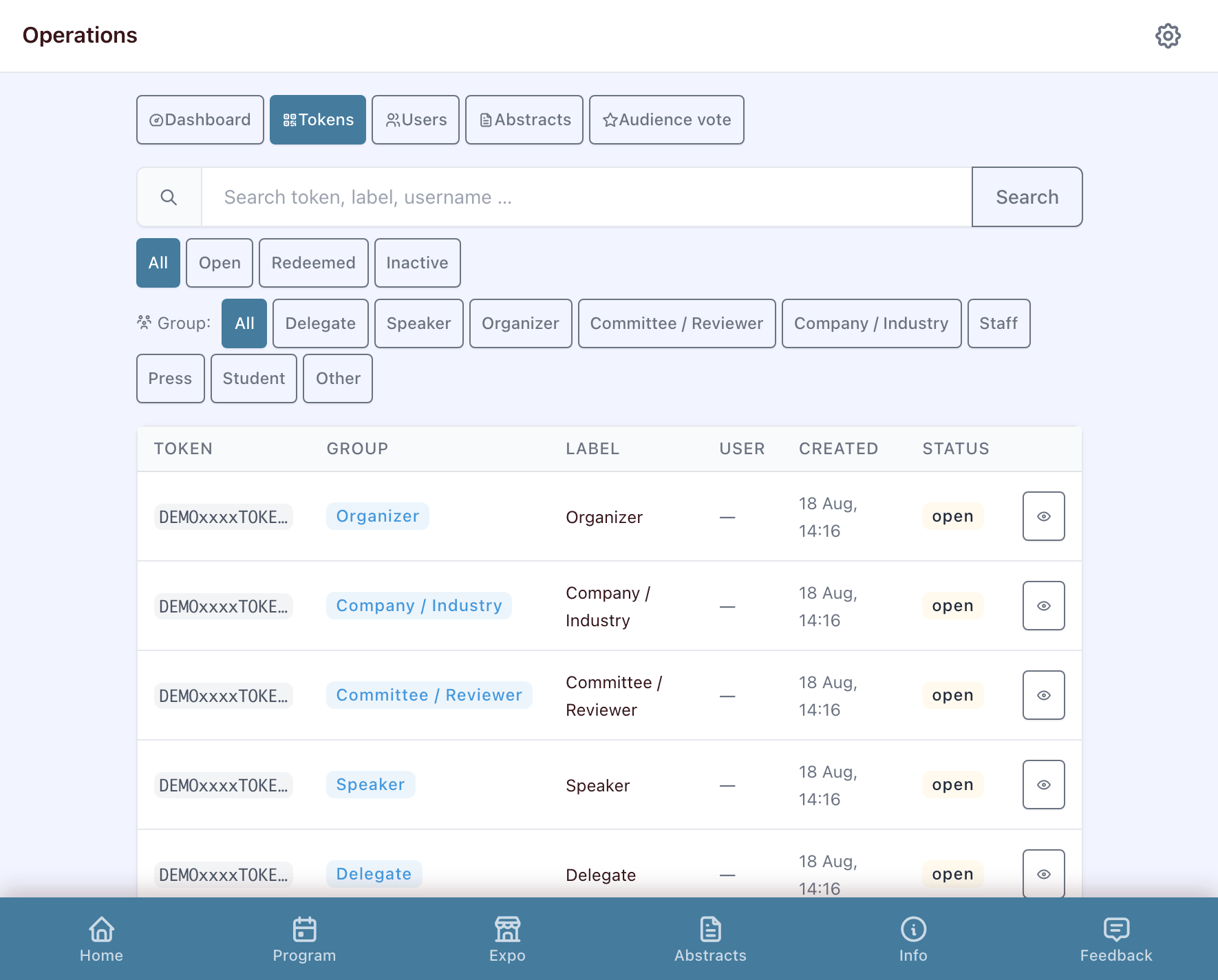
The Tokens list shows every access token with its group, label and status (open, redeemed, inactive). Search by token, label or username, and filter by status or group.
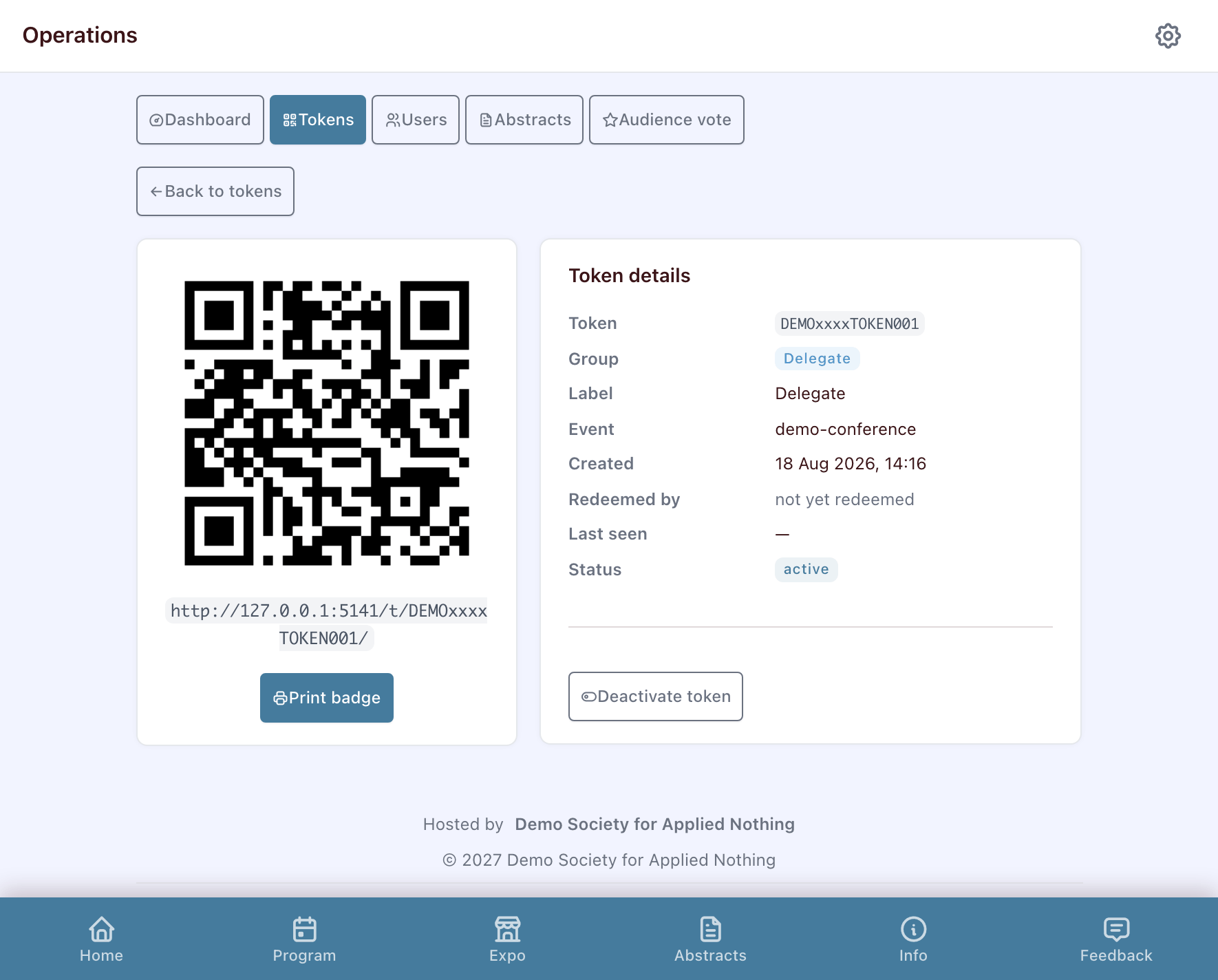
Open a token to see its QR code and details. Print badge produces the printable badge; Deactivate revokes a token if a badge is lost. A token stays “open” until someone scans it and picks a nickname — then it counts as redeemed.
To print many badges at once, tick the tokens in the list and use Print selected: the badges come out six to an A4 sheet, in the same design as the single badge.
Manage attendees
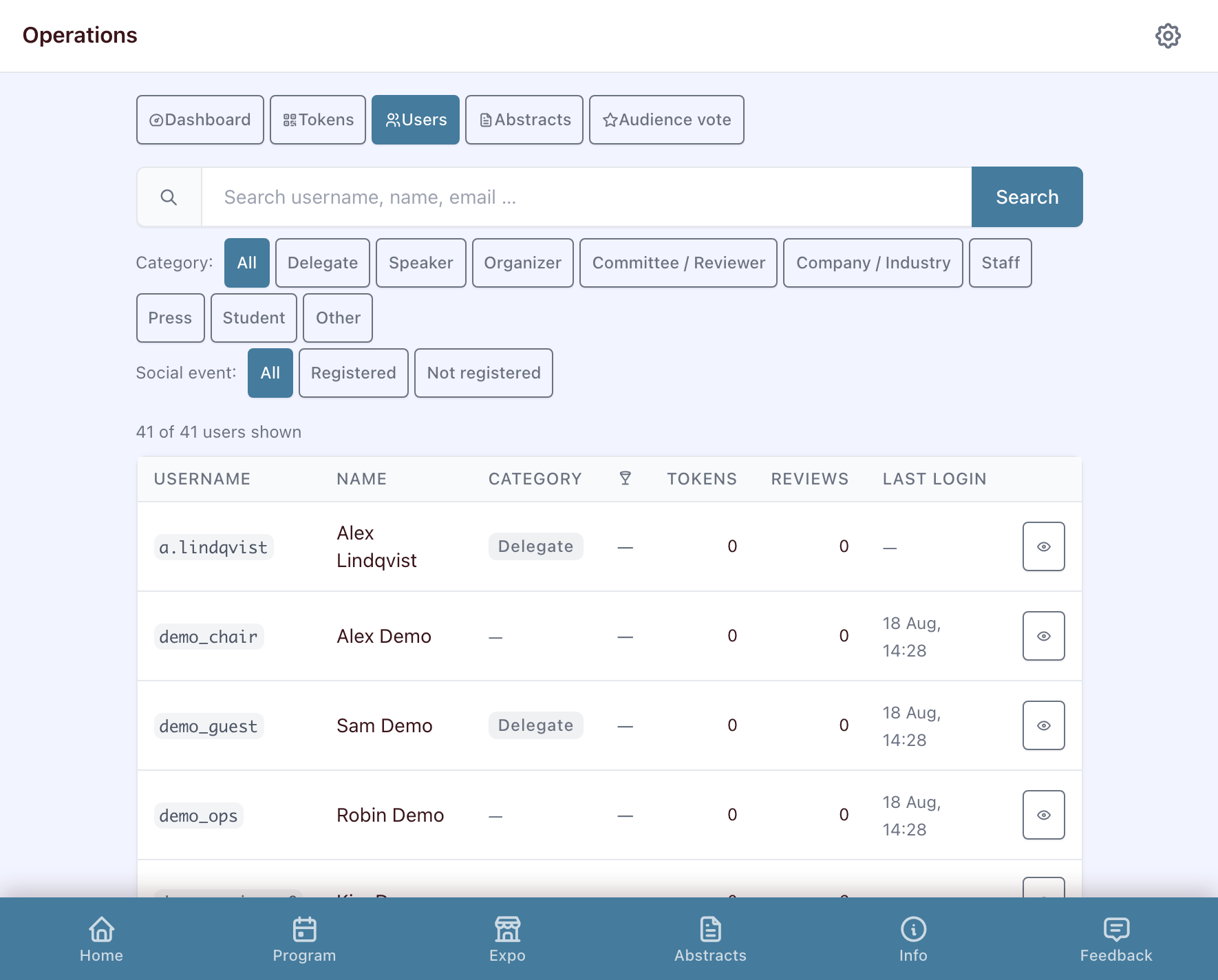
Under Users you find every registered attendee. Open a profile to edit their display name or affiliation, reset a password, unlock an account that got locked after too many sign-in attempts, or issue a fresh token.
Abstract review results
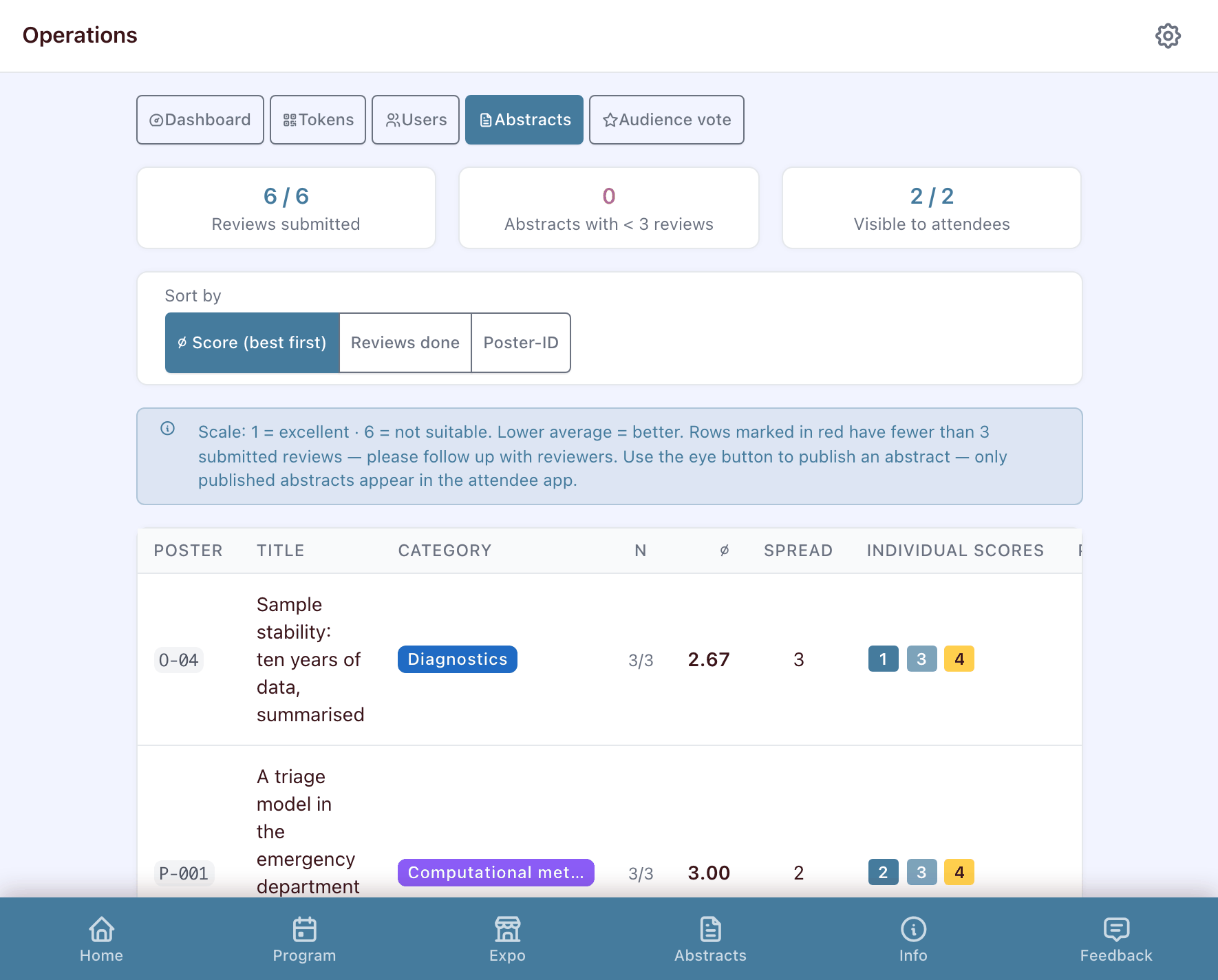
The Abstracts area in Operations aggregates the reviewers' scores per abstract, so the scientific committee can rank submissions and decide on oral vs. poster slots.
Audience vote is the separate public ranking: how many stars each poster collected from attendees. From there you award the Audience Choice Award with one click — a tie at the top is flagged, and only one abstract per event can hold the award. An abstract is only votable once it is marked as poster on display, which also decides whether it gets a QR sheet.
Need help during the event?
Walk up to the registration desk or any committee member with an orange lanyard. They'll help you with login problems, missing sessions on your schedule, or anything else.